PlacementProduct page block

SmartBoost guide
Install, configure, and validate SmartBoost in one pass.
This guide covers the exact merchant flow: install the app, choose a recommendation engine, add the theme block, and verify storefront tracking before launch.
SignalsCatalog + session context
PrivacyAnonymous shopper data
Live Shopify app
1. Install SmartBoost from Shopify
Start from the install flow, approve the requested product scope, and wait for the embedded admin to open inside Shopify.
- Use the store's .myshopify.com domain during install.
- Open SmartBoost from Apps after Shopify finishes the handoff.
2. Configure your recommendation engine
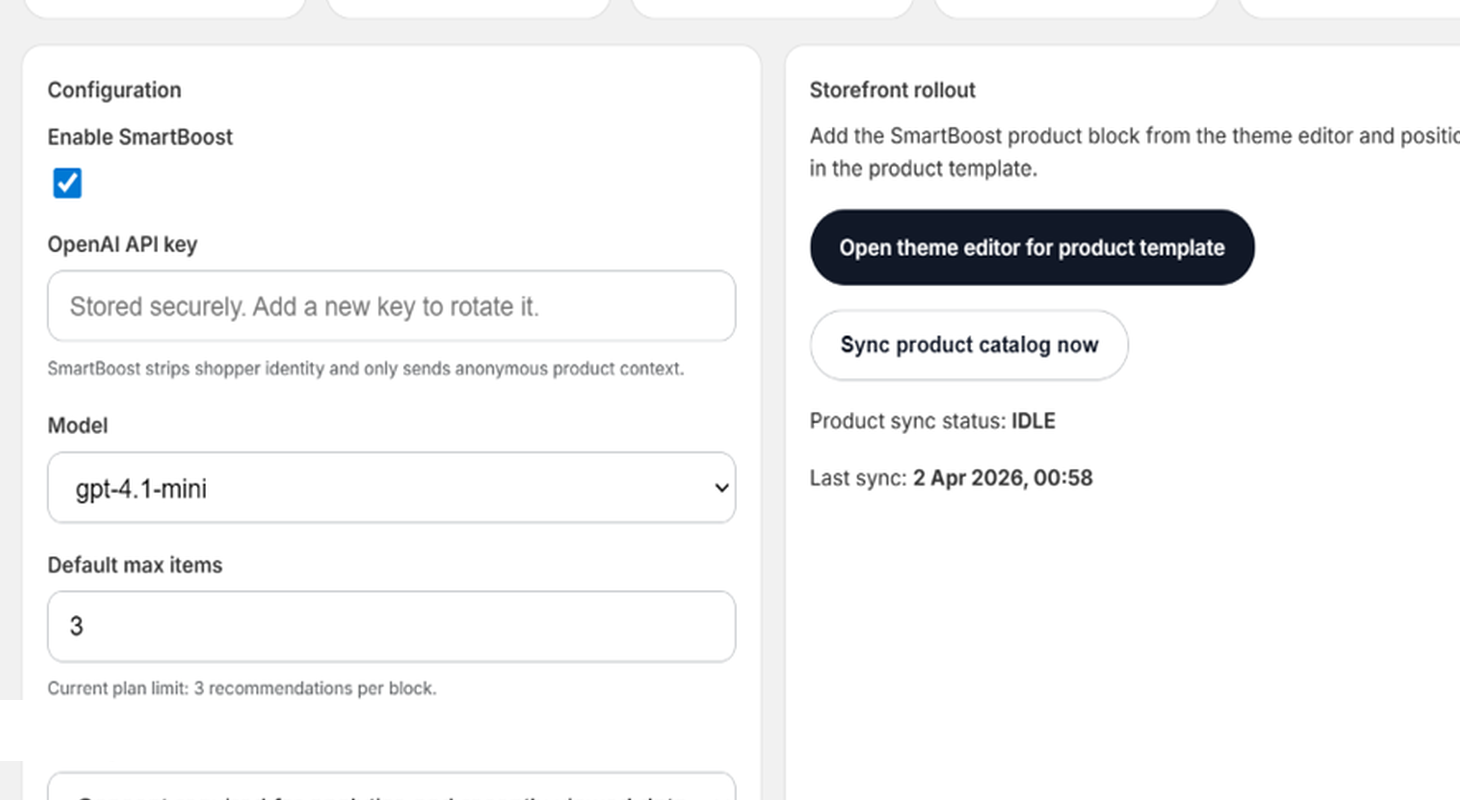
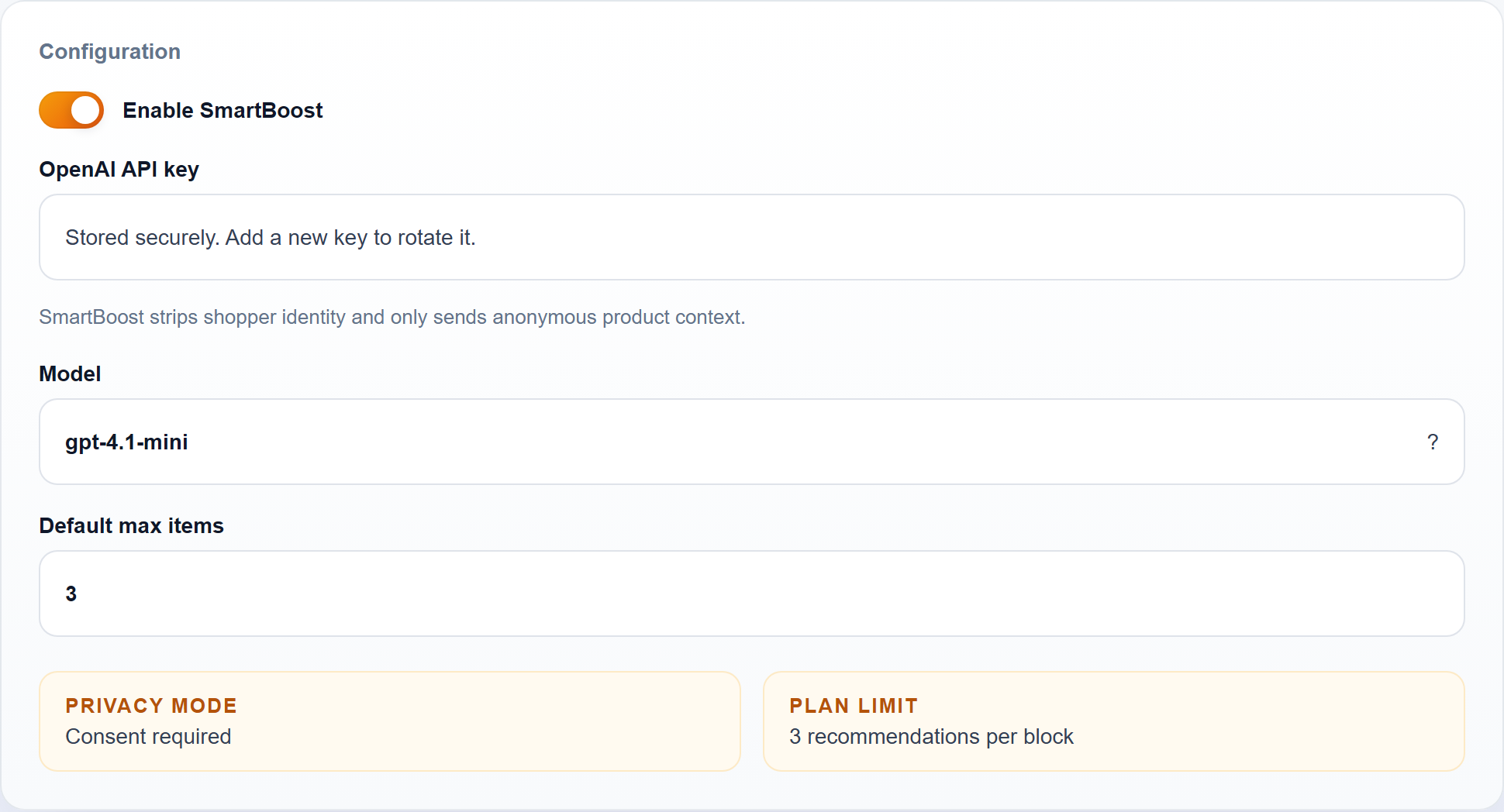
Choose the built-in statistical engine or an external provider, then set the model and recommendation limit before enabling live recommendations.
- Supported options include the built-in statistical mode, OpenAI, Claude, Gemini, Grok, and Ollama.
- Ollama must be reachable from the SmartBoost backend, not just the merchant laptop.
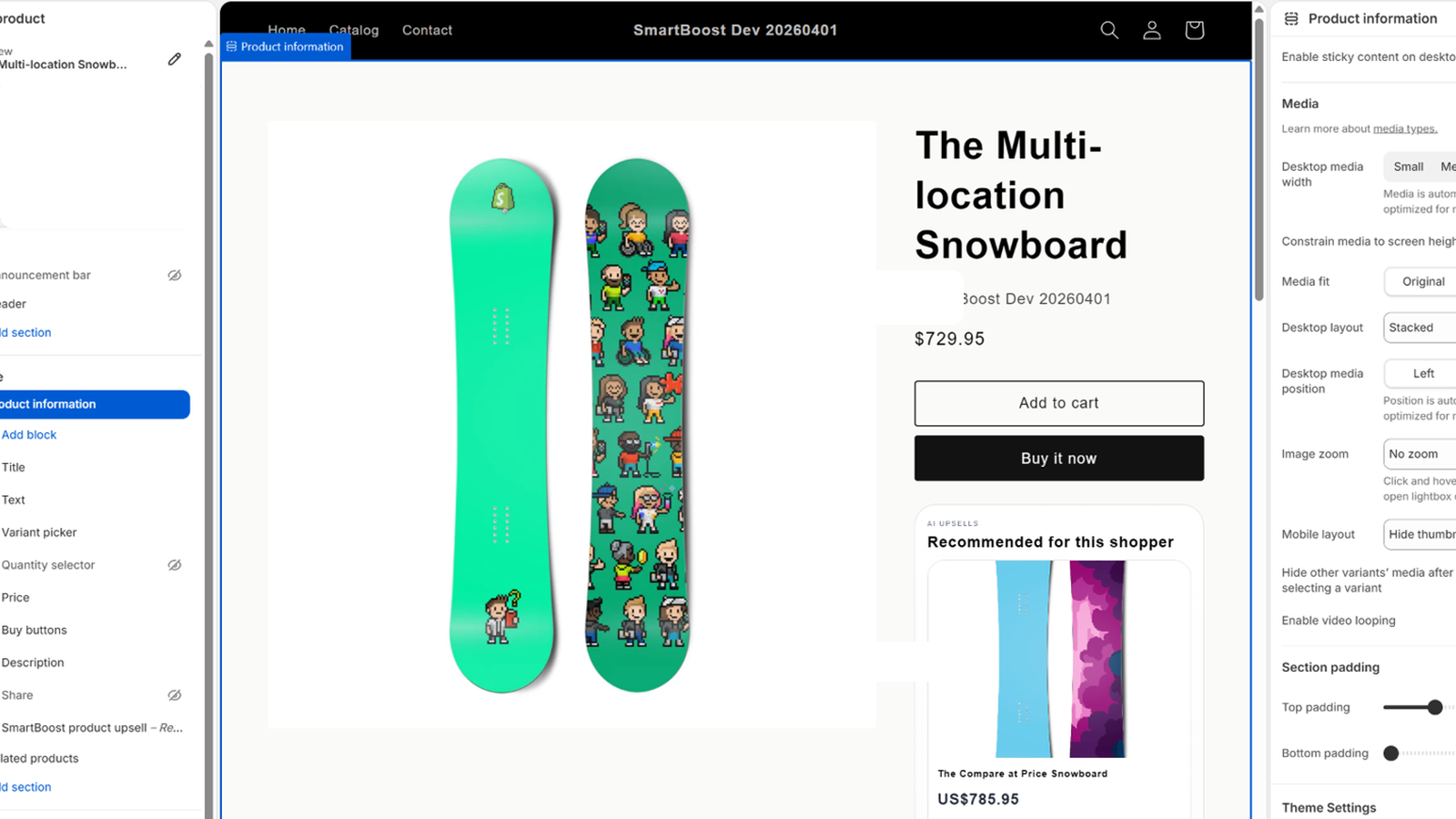
3. Add the product-page app block
Use Shopify's theme editor to place the SmartBoost block where shoppers see it naturally, usually below product information.
- Set the block heading, max items, and reason visibility in the block settings.
- Placement is controlled in Shopify, not in SmartBoost.
4. Validate the storefront flow
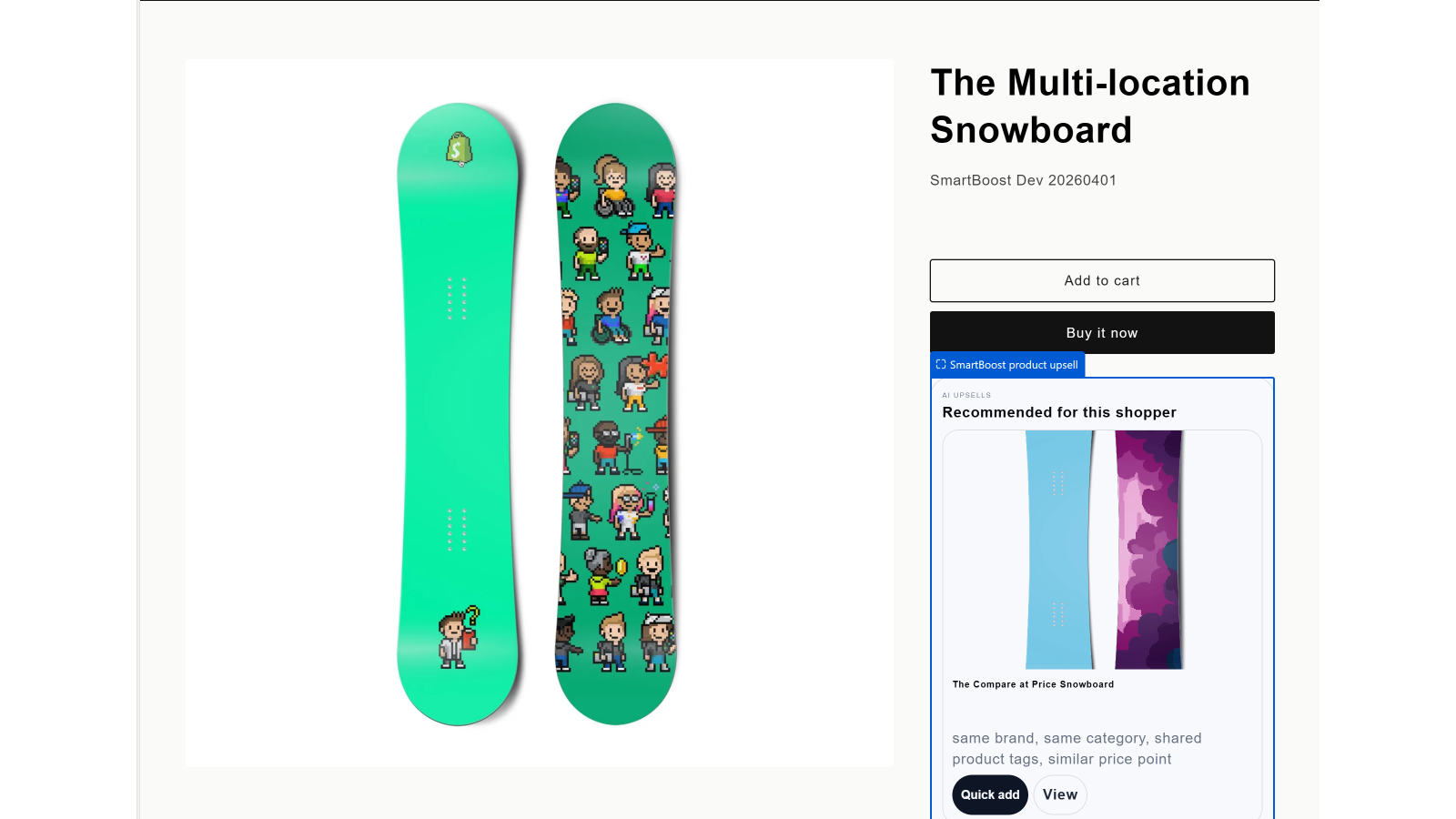
Preview a live product page, confirm the recommendations render, and verify clicks and add-to-cart events appear in the admin.
- Check one high-intent product first before rolling out wider.
- Review analytics in the embedded dashboard after a few test interactions.
Launch QA checklist
- The SmartBoost block appears on the product template without overlap or clipping.
- Recommendation cards show image, title, price, and quick-add behavior.
- The chosen engine is enabled and any required credentials are saved correctly.
- Analytics in the embedded admin move after impression, click, and add-to-cart tests.
- If consent mode is enabled, recently viewed and analytics behavior matches merchant policy.
Privacy and provider notes
- SmartBoost uses catalog and anonymous shopper context by default.
- The built-in statistical mode does not send recommendation prompts to an external AI provider.
- Merchants should only add provider credentials they control when using an external model.
- Ollama is suitable only when the configured host is network-reachable by the app.
- Consent-aware mode should be enabled when the merchant needs stricter storefront tracking behavior.
Need rollout help?
Include your shop domain, engine choice, and the product URL you used for testing.
Support: dhookster@gmail.com